A transport mode is the method the Veeam Data Mover on a VMware backup proxy uses to read VM data from the source and write it to the target. It has more effect on job speed and production impact than almost any other setting.
Selection order and automatic mode
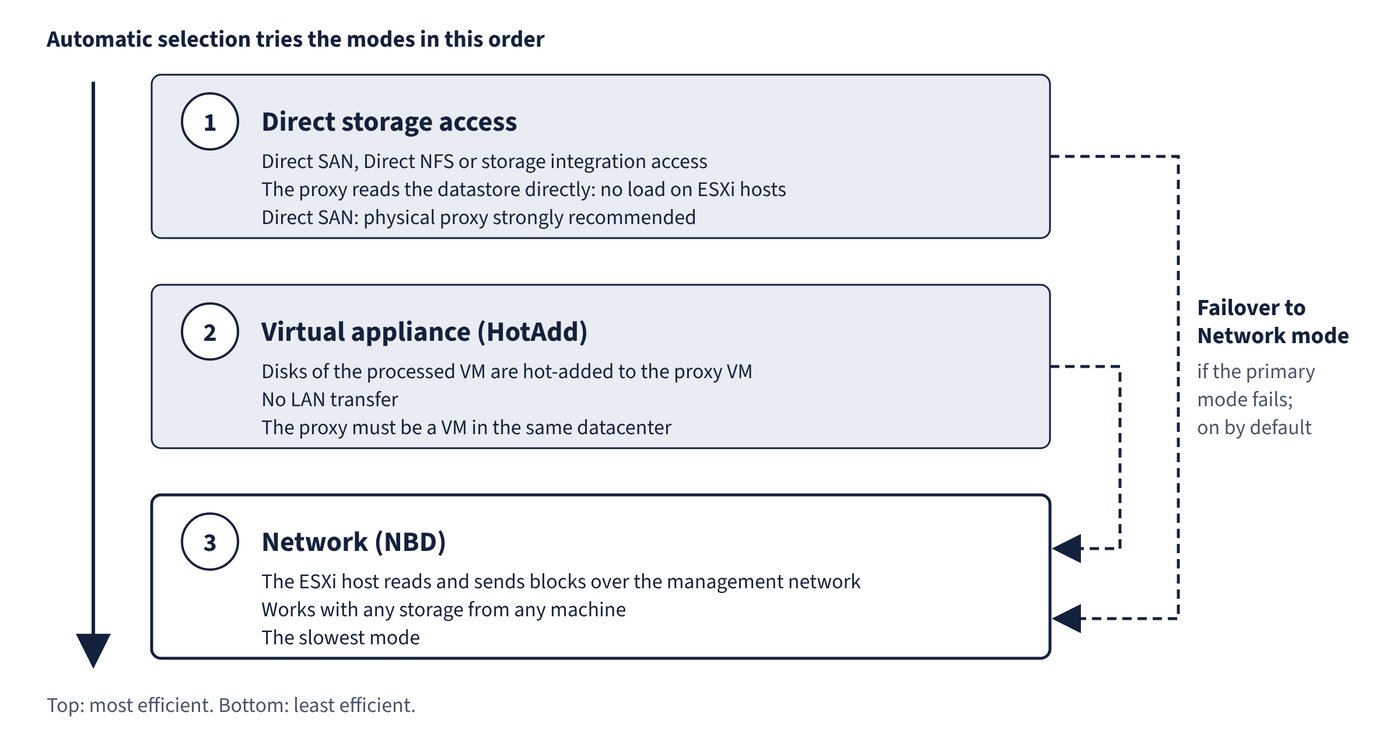
From most to least efficient: Direct storage access (Direct SAN, Direct NFS, or storage integration access), Virtual appliance (HotAdd), and Network (NBD). With automatic selection, Veeam scans the proxy configuration and its connectivity and picks in that order. The selected mode is used for reading; for writing, Veeam picks the mode automatically from the proxy configuration and mode limits. VMware VADP is used for all modes except backup from storage snapshots, Direct NFS and Virtual appliance. Figure 2.2 shows the selection order and the failover path to Network mode.
| Mode | How data moves | Proxy | Load on ESXi/LAN | Key limitations |
|---|---|---|---|---|
| Direct SAN access | Directly from FC, FCoE, iSCSI, NVMe-FC (experimental) or shared SAS VMFS LUNs | Physical machine strongly recommended, with HBA access; LUNs visible but never initialised | None on hosts or LAN | Restores thick disks only; not for vSAN, vVol or VM templates; one VM, one mode |
| Direct NFS access | Native Veeam NFS client on the proxy reads NFS 3 or 4.1 datastores directly | Physical or virtual with ReadOnly/Write and root access to the export | LAN used, no ESXi load | Not for VMs with snapshots; not for running Windows VMs with VMware Tools quiescence; replication writes use another mode after the first session |
| Virtual appliance (HotAdd) | Disks of the processed VM hot-added to the proxy VM | Must be a VM in the same datacenter, with latest VMware Tools and a SCSI 0:X controller | No LAN transfer | No IDE disks; SATA only from vSphere 6.0; vSAN source with non-vSAN proxy unsupported; NFS 3.0 needs proxy on the same host |
| Network (NBD) | ESXi host reads and sends blocks over the management network | Any machine | Uses ESXi management network | Slowest; optional NBDSSL encryption increases ESXi CPU load |
Storage-type recommendations
| Production storage | Direct storage access | Virtual appliance |
|---|---|---|
| FC SAN | Physical proxy with direct FC access | Proxy VM on a host connected to the storage |
| iSCSI SAN, NFS | Physical or virtual proxy | Proxy VM on a connected host |
| Shared SAS | Physical proxy with direct SAS access | Proxy VM on a connected host |
| vSAN, vVol | Not supported | Proxy VM on a host connected to that storage |
| Local storage | - | A proxy VM on every ESXi host |
Network mode works with any storage from any machine on the network; it is not recommended on 1 GbE but works well on 10 GbE. It is the only option for a physical proxy when hosts use local storage, and can be the best choice for hundreds of small VMs with a low change rate. With VMware Cloud on AWS, Virtual appliance is the only available mode.
Failover to Network mode
Failover to network mode is enabled by default for Direct storage access and Virtual appliance: if the primary mode fails, the job switches to NBD. Where data cannot be processed by other modes, failover to Network applies automatically even if the option is cleared. If a VM has disks on different storage types, disks are processed in different modes, which is why the option should stay enabled.
Which components support which modes
| Component used as proxy | Direct SAN | Direct NFS | Storage integration | Virtual appliance | Network |
|---|---|---|---|---|---|
| Veeam Software Appliance | No | No | No | Yes | Yes |
| Veeam Infrastructure Appliance | Yes | Yes | iSCSI, FC, NFS | Yes | Yes |
| Veeam Infrastructure Appliance with iSCSI and NVMe/TCP | Yes | Yes | iSCSI, FC, NFS, NVMe-FC, NVMe-TCP | Yes | Yes |
| Windows backup server or Windows server | Yes | Yes | iSCSI, FC, NFS | Yes | Yes |
| Linux server with persistent credentials | Yes | Yes | iSCSI, FC, NFS, NVMe-FC, NVMe-TCP, NVMe-RDMA | Yes | Yes |
| Veeam Hardened Repository, or Linux server added with single-use credentials | No | No | No | No | Yes |
Starting from 13.1, the default transport mode for the proxy on a Veeam Software Appliance is Automatic; because the appliance does not support Direct storage access, it uses HotAdd if that is enabled in Veeam Host Management Console and available for the VM, otherwise Network. Adding a local, iSCSI or FC device to the appliance in Host Management restarts the HotAdd service and fails running HotAdd jobs, so add storage between job runs.
Common trap: Expecting Direct SAN to speed up every restore - Direct SAN restores only thick disks, and replicas are thin by default, so replication writes use HotAdd or Network unless disks are converted to thick in the job.