Endpoint DLP works only on devices that have been onboarded to Microsoft Purview, and onboarding is shared with Microsoft Defender for Endpoint. Knowing the supported platforms and what each one needs is the first design decision.
| Platform | Support and notes |
|---|---|
| Windows 10 and Windows 11 (x64) | Supported; the Endpoint DLP overview names Windows 10 1809 and later and Windows 11 |
| Windows 11 (ARM64) | Supported for most activities |
| Windows Server 2019 and later (x64) | Supported, but Endpoint DLP is off by default for servers; turn on Endpoint DLP support for onboarded servers in Endpoint settings. Not supported on domain controllers or Server Core |
| macOS | The three latest released major versions, x64 and Apple silicon (M1, M2, M3); onboarded through Intune, JAMF Pro or another MDM |
Common trap: Treating Endpoint DLP as Windows-only - it also supports the three latest macOS versions and Windows Server 2019 and later, although some settings (VPN settings, RDP and access by apps outside the restricted lists, for example) are Windows-only.
Windows prerequisites
- Anti-malware client 4.18.2110 or newer, with Real-time protection and Behavior monitoring enabled (other Windows Security components needn’t be active). Versions older than N-2 aren’t supported.
- Devices must be Microsoft Entra joined, Microsoft Entra hybrid joined or Microsoft Entra registered.
- A supported, up-to-date Microsoft 365 Apps (16.0.14701.0 or later recommended).
- Allow MpDlpService.exe through firewalls, third-party antivirus and application control, and configure the device proxy if one is used.
- Installing the supported Windows Server updates disables the classification feature on the server; previously classified files stay protected with Microsoft Defender 4.18.23100 or later.
Onboarding
- In the Microsoft Purview portal go to Settings > Device onboarding > Devices and select Turn on device onboarding (usually about 60 seconds; allow up to 30 minutes).
- Choose Onboarding, pick a deployment method and download the package.
- Deploy it with the chosen method.
| Deployment method | Typical use |
|---|---|
| Local script | Testing; up to 10 machines |
| Group Policy | Domain-joined Windows devices |
| Configuration Manager | Devices managed by Configuration Manager |
| Mobile Device Management / Microsoft Intune | Cloud-managed devices (and macOS packages) |
| VDI onboarding scripts | Non-persistent virtual desktops |
- Shared with Microsoft Defender for Endpoint: devices already onboarded to Defender for Endpoint appear automatically in the device list; you only turn on device monitoring. Onboarding through Purview also onboards devices to Defender for Endpoint.
- macOS: devices must already be managed by Intune, JAMF Pro or another MDM. You deploy the onboarding package and configuration profiles (full disk access, accessibility, network filter, system extension); Endpoint DLP needs full disk access for the com.microsoft.dlp.daemon process. After enabling device monitoring, choose Turn on macOS device monitoring.
- Check Configuration status and Policy sync status under Device onboarding > Devices. Offline devices stay listed for 180 days.
- Device onboarding permissions use Microsoft Entra roles only (Purview roles aren’t supported). Enabling device management and using the onboarding page needs Security admin, Compliance admin or Global admin.
Common trap: Re-onboarding devices that Defender for Endpoint already manages - onboarding is shared, so those devices already appear in Purview; just turn on device monitoring.
Common trap: Assigning a Purview role group so a helpdesk lead can onboard devices - device management supports only Microsoft Entra roles (Compliance admin, Security admin or Global admin); Purview role groups don’t grant it.
Why policies reach every device
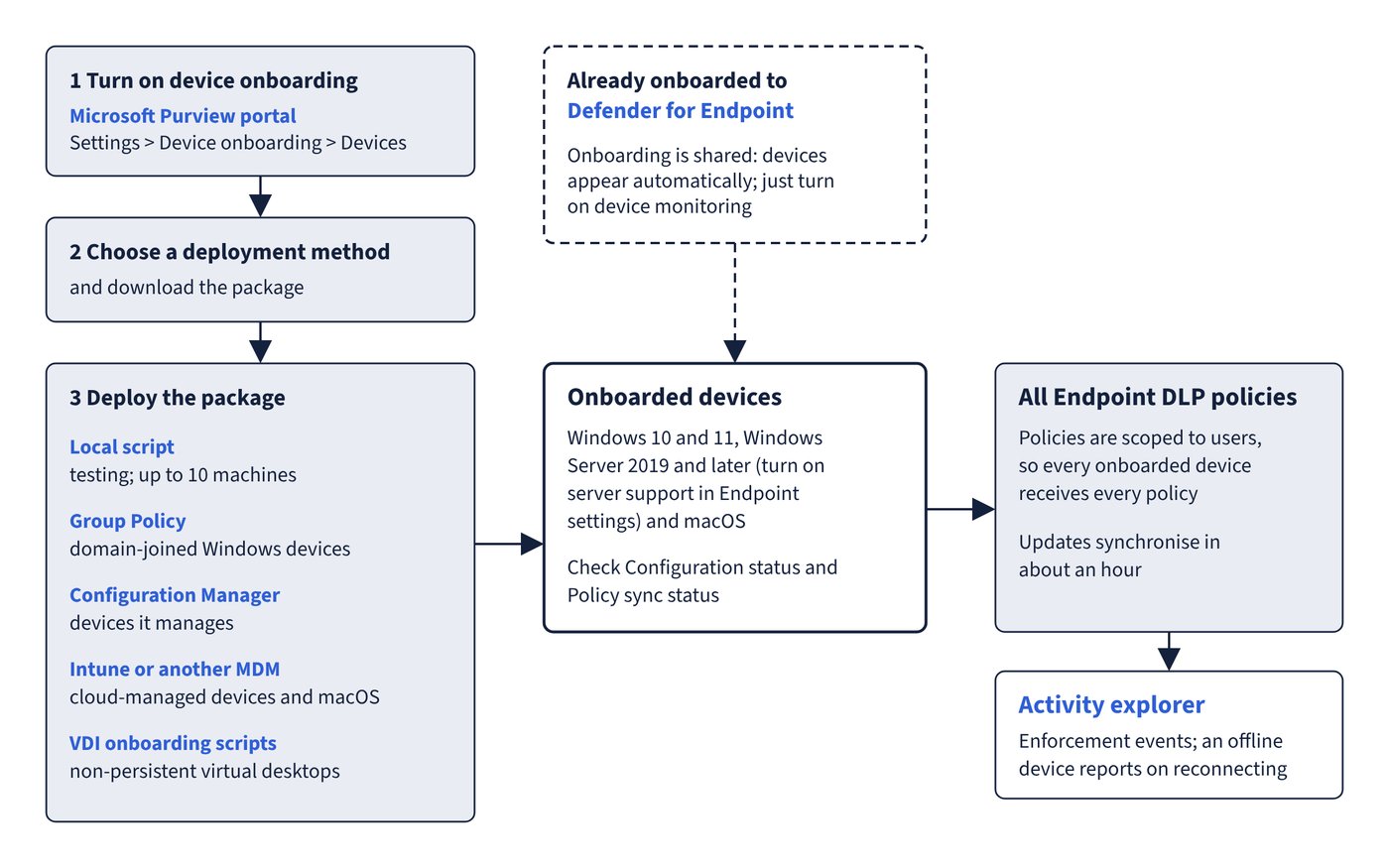
Because endpoint policies are scoped to users and a device can have several users, every onboarded device receives all Endpoint DLP policies. Policy updates generally take about an hour to synchronise (authorisation group changes take 24 hours). An offline Windows device keeps enforcing the policies it already has, but new or changed policies arrive only when it reconnects, and enforcement events appear in Activity explorer after it comes back online. Figure 8.1 shows the whole path from turning on onboarding to events in Activity explorer.