A sensitivity label is a tag stored in clear text in a file’s or email’s metadata, so it persists wherever the content goes and third-party apps can read it. Each item can carry one sensitivity label (and, separately, one retention label). Good design decides what each label applies to, how labels are ordered, and how they’re grouped. Figure 4.1 shows how labels are ordered, grouped and scoped.
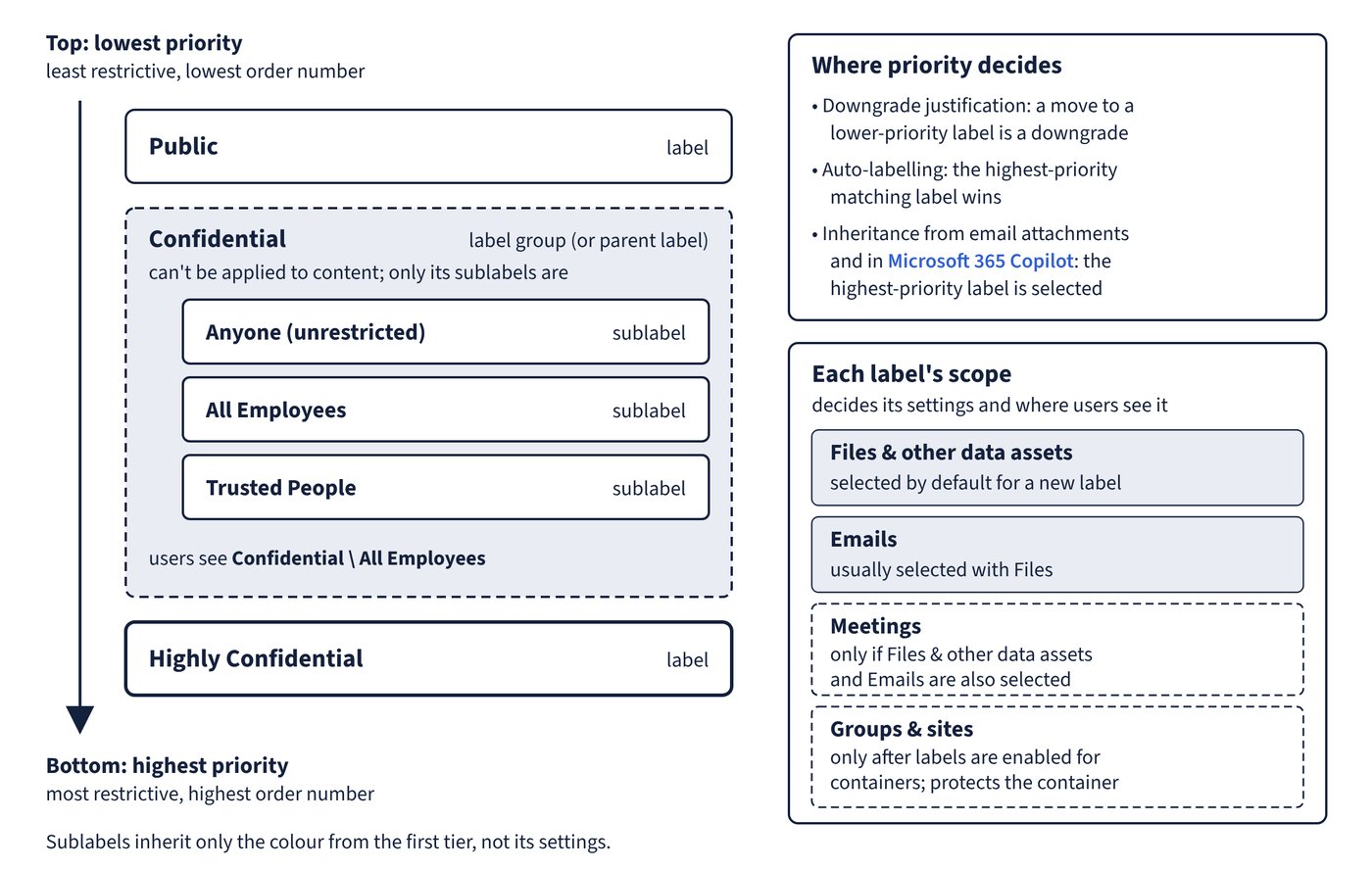
Label scopes
The label scope decides which settings you can configure and where users can see and select the label.
| Scope | Covers | Notes |
|---|---|---|
| Files & other data assets | Office files, Loop components and pages, Power BI, Microsoft Fabric items, and Data Map assets when labelling is extended beyond Microsoft 365 | Selected by default for a new label; items once in the separate Schematized data assets scope now sit here |
| Emails | Outlook messages | Usually selected with Files, because emails carry attachments |
| Meetings | Calendar events, Teams meeting options and Teams chat | Can be selected only if Files & other data assets and Emails are also selected |
| Groups & sites | Teams, Microsoft 365 Groups, SharePoint sites, Viva Engage communities and Loop workspaces | Appears only after labels are enabled for containers; protects the container, not the items in it (see Chapter 5) |
A label scoped only to files is visible in Word, Excel and PowerPoint but not Outlook, and one scoped only to emails is visible only in Outlook. Scoping has knock-on effects: a files-only label can’t be the default label for a SharePoint document library or the default email label, an emails-only label can’t use the Word, Excel and PowerPoint permission prompt, and label inheritance from email attachments needs both scopes. If a policy uses its settings with a label scoped to just files or just emails, the same policy must also include at least one label with both scopes. Microsoft advises creating a new emails-only label rather than removing the files scope from an existing one.
Label priority
Labels are listed on the Sensitivity labels page under Information Protection, and their order is their priority. The least restrictive label (such as Public) goes at the top with the lowest order number; the most restrictive (such as Highly Confidential) goes at the bottom with the highest. Priority matters for:
- the downgrade justification setting, which treats a move to a lower-priority label as a downgrade;
- auto-labelling, where the highest-priority matching label wins;
- label inheritance from email attachments, and label inheritance in Microsoft 365 Copilot, which both select the highest-priority label.
You can move a label up or down, to the top or bottom, or type a priority number directly.
Sublabels, parent labels and label groups
Labels can be grouped in a two-tier hierarchy, such as Confidential with sublabels Anyone (unrestricted), All Employees and Trusted People; users see the applied label as Confidential All Employees. Sublabels inherit only the label colour from the first tier, not its settings.
The original model used parent labels, which look like labels but can’t be applied to content. Label groups are replacing them: a label group has only a name, description, colour and priority, and only the labels inside it are published. Tenants with no labels, or created from 1 October 2025, use the modern label scheme with label groups; others can migrate. In the classic scheme, publish a parent label alongside its sublabels. In the modern scheme, label display names must be unique within a group, and standalone labels must also have unique display names.
Limits and practical size
A tenant can hold more than 1,000 labels, except that labels which apply encryption with specified users and permissions are limited to 500 per tenant. Effectiveness drops when users have more than five main labels or more than five sublabels under one.
Editing, removing and deleting labels
- Editing a published label needs no republishing; allow up to 24 hours for the change to reach apps and services.
- Removing a label from a policy stops users seeing it, but doesn’t remove it from content already labelled.
- You can’t delete a label that’s still in a label policy.
- Deleting a label doesn’t remove it from content. If it applied encryption, the protection template is archived so content still opens, and you can’t create a new label with the same name. Outside SharePoint and OneDrive the encryption remains; inside them (with labelling enabled) a deleted label’s encryption is removed when the service processes the file. Container labels are removed and their settings stop being enforced, which typically takes 48-72 hours for SharePoint sites.
Common trap: Selecting only the Meetings scope for a label meant to protect Teams meetings - Meetings can be selected only when Files & other data assets and Emails are also selected.
Common trap: Putting Highly Confidential at the top of the label list because it’s the most important - the top position is the lowest priority; the most restrictive label belongs at the bottom with the highest order number.
Common trap: Choosing a parent label as the default label or the label to auto-apply - a parent label (a label with sublabels) can’t be applied to content, so pick a sublabel, or set a default sublabel with the DefaultSubLabelId advanced setting.