Power BI Desktop remembers the credentials and privacy level for every source you connect to, and a published semantic model needs its own credentials in the service. Knowing where each setting lives saves a lot of time when a refresh fails or a merge is blocked.
The Data source settings dialog
Open Data source settings from File > Options and settings, or from Transform data on the Home tab (or the Power Query editor’s Home tab). The dialog works at two scopes:
- The current file: the sources this file uses. Here Change Source repoints a connection, for example from a development server to a production server, without rebuilding the report.
- Global permissions: the sources you have connected to from this machine, with their stored credentials and privacy levels.
For a selected source, Edit Permissions opens a dialog where you can:
- Change Credentials (Edit, choose another authentication kind, Save).
- Set the Privacy Level.
- Revoke Approvals for native database queries. A native query typed into a connector dialog (for example a SQL statement under Advanced options) simply runs, but one added another way prompts for approval each time its text changes, unless Require user approval for new native database queries is cleared under Options > Global > Security.
Clear Permissions deletes the stored credentials for one source and Clear All Permissions for all of them, after which Power BI prompts again. Export PBIDS creates a data source file for the selected source (see Power BI for data analysts: the platform, licences and the end-to-end workflow).
When a connector takes a URL, the credential prompt also asks for the level the credentials apply to. Choosing the top-level address (for example the site root) applies the same authentication to every sub-address; choose a deeper level if different folders need different accounts.
Credentials in the service
After publishing, credentials for cloud sources are entered in the semantic model’s settings under Data source credentials (the settings pane also lets you set the privacy level for each connection). Cloud DirectQuery sources such as Azure SQL Database, Azure Synapse Analytics, Amazon Redshift and Snowflake don’t need a gateway, but the report won’t open until credentials are supplied. On-premises sources need an on-premises data gateway, covered in Gateways and semantic model refresh. Only the model owner can configure data source credentials and the refresh schedule.
Privacy levels
Privacy levels stop Power Query from sending data from one source to another inappropriately when a query combines them, including through query folding.
| Level | Meaning | Can its data fold into |
|---|---|---|
| None | No privacy settings; for controlled development and testing | Anything |
| Private | Sensitive or confidential; visible only to authorised users | Nothing, not even another Private source |
| Organizational | Visible to a trusted group | Private and Organizational sources, but not Public |
| Public | Visible to everyone, such as public web data | Any source |
Microsoft recommends setting highly sensitive sources to Private. When a query combines sources with no privacy level set, Power Query shows a warning and the Privacy levels dialog. If combining would move data from a more restrictive source into a less restrictive one (for example a Private workbook merged with an Organizational SQL Server), Power Query blocks the query with a privacy level error raised by the Data Privacy Firewall. Figure 2.2 shows which combinations are allowed and which are blocked.
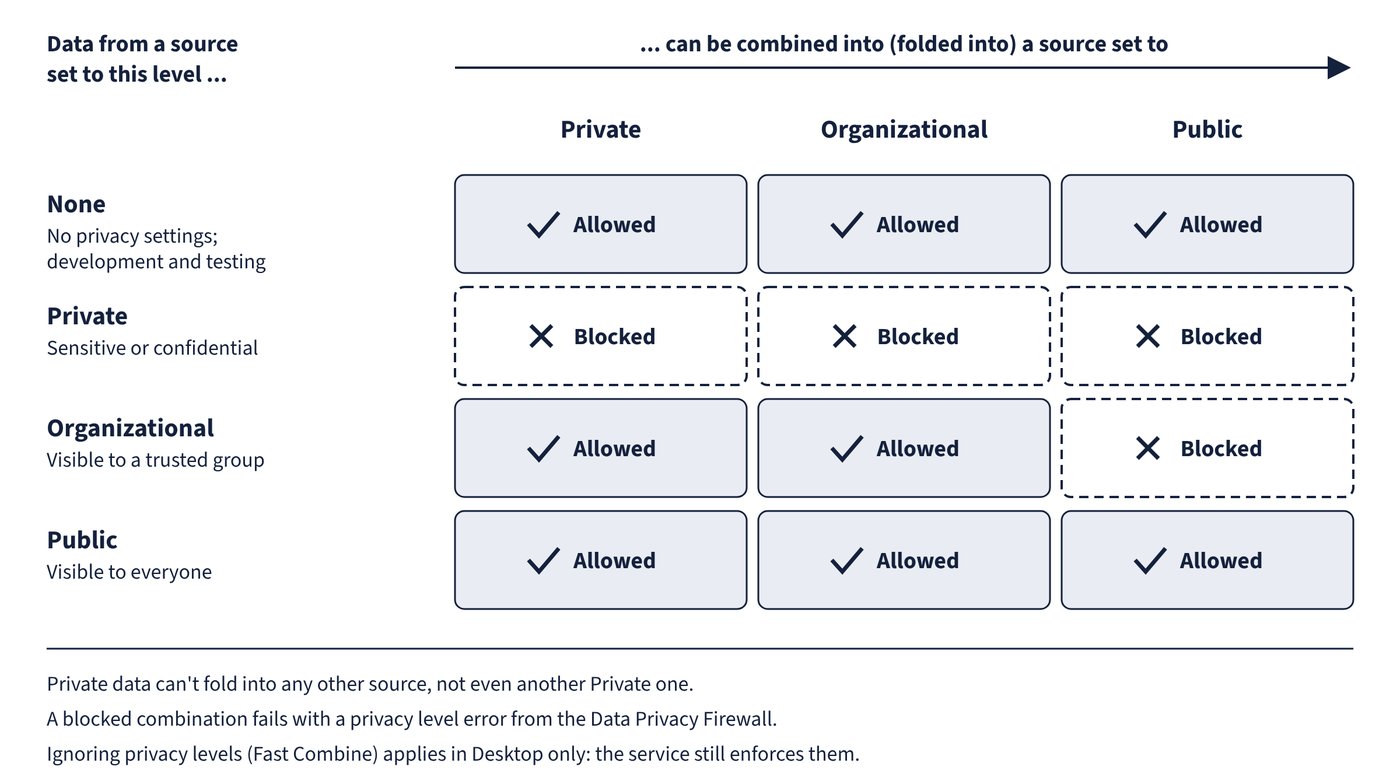
Common trap: Setting two sensitive sources to Private so that they can be merged with each other - data from a Private source can’t fold into any other source, including another Private source. Organizational is the level for sources shared within a trusted group that need to be combined.
Privacy options and Fast Combine
Separately from the levels, File > Options and settings > Options > Privacy (under Global or Current file) controls whether levels are enforced:
| Scope | Options | Default |
|---|---|---|
| Global | Always combine according to each source’s privacy level; combine according to each file’s setting; always ignore privacy levels | Combine according to each file’s setting |
| Current file | Combine according to each source’s privacy level; ignore the privacy levels and potentially improve performance | Combine according to privacy levels |
Ignoring privacy levels is known as Fast Combine. It can improve performance but could expose confidential data.
Common trap: Fixing a privacy-level error by selecting Ignore the Privacy Levels and potentially improve performance and then publishing - the setting doesn’t apply to semantic models in the Power BI service, so the published model still enforces privacy levels and refresh can fail. Set compatible privacy levels on the sources instead.
Formula.Firewall and query references
Older Power BI Desktop releases also blocked any query that referenced another query and directly accessed a data source, with the error “Formula.Firewall: Query … references other queries or steps, so it may not directly access a data source. Please rebuild this data combination.” The usual workarounds were restructuring queries or disabling privacy checks. From the July 2026 release, the setting Allow data privacy firewall partitions that reference other partitions to also access data sources (listed under Preview features) is on by default, matching the behaviour of the Power BI service: such queries now run when the sources’ privacy levels are compatible. The firewall itself still applies, so incompatible levels still block the combination.
Common trap: Restructuring every query that uses a value from another query to build a source request, to avoid Formula.Firewall errors - in current Desktop releases, and in the service, this pattern runs as long as the privacy levels of the sources involved are compatible. Restructuring is needed only when the levels are incompatible or an older Desktop version is in use.