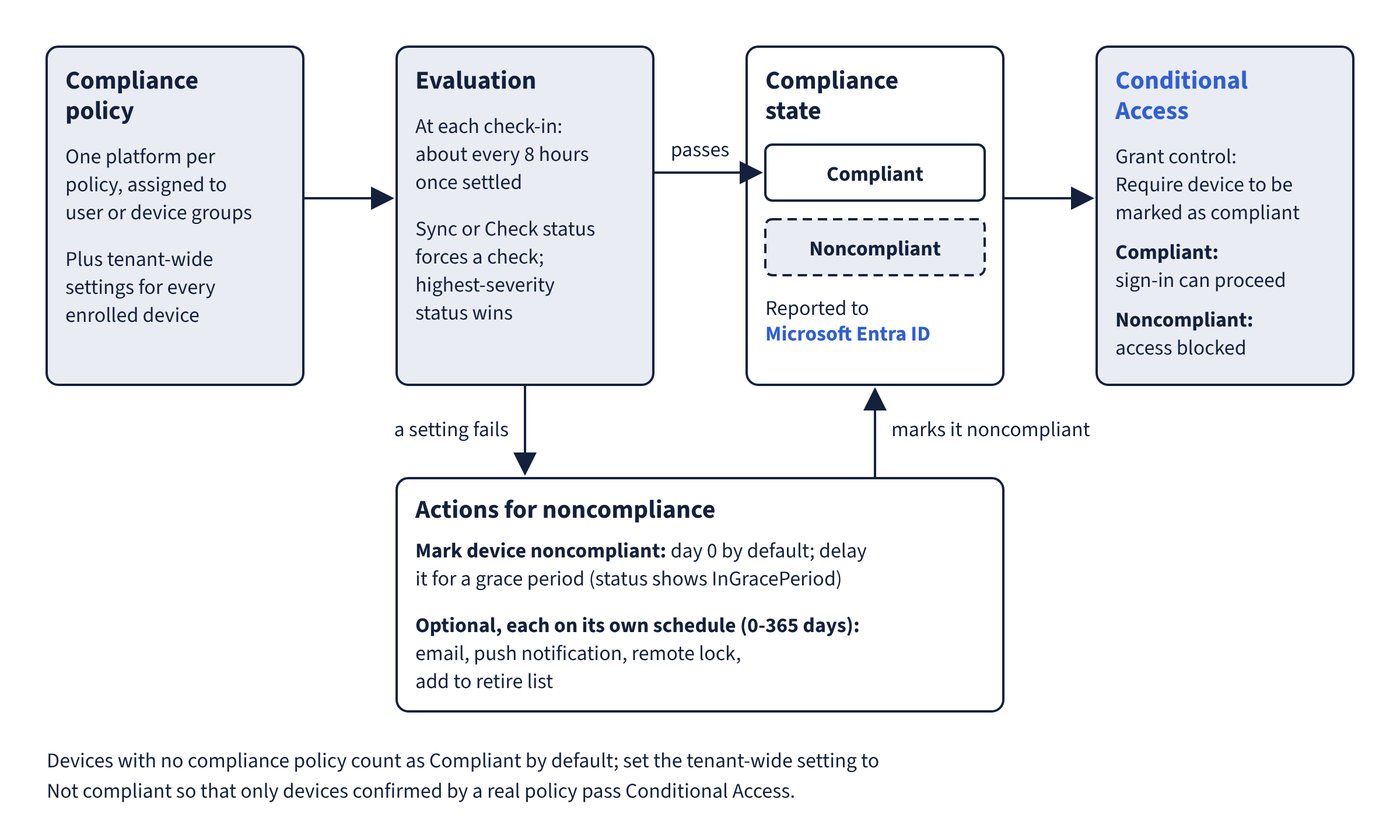
Intune compliance has two layers: tenant-wide compliance policy settings that every device receives, and platform-specific device compliance policies that you assign to groups. Knowing which setting lives in which layer avoids a lot of confusion. Figure 5.1 follows a device from policy evaluation to the access decision.
Tenant-wide compliance policy settings
Compliance policy settings are configured in the Microsoft Intune admin center under Endpoint security > Device compliance > Compliance policy settings. They behave like a built-in policy that applies to every enrolled device.
| Setting | Values | Default | Why it matters |
|---|---|---|---|
| Mark devices with no compliance policy assigned as | Compliant, Not compliant | Compliant | With Conditional Access, set Not compliant so that only devices confirmed by a real policy get access |
| Compliance status validity period (days) | 1 to 120 | 30 | A device that doesn’t report on all its policies within this period is treated as noncompliant; shown as the Is active setting in reports |
Common trap: Assuming an unassigned device is blocked by a “require compliant device” Conditional Access policy - the tenant default marks devices with no compliance policy as Compliant, so the setting must be changed to Not compliant to close that gap.
Common trap: Looking for a tenant-wide jailbreak or “enhanced jailbreak detection” switch - the tenant-wide settings are only the two in the table; jailbreak and root detection are per-policy Device Health settings.
Device compliance policies
A device compliance policy is created under Devices > Compliance > Create policy, and each policy targets one platform: Android Enterprise (with a profile type of either fully managed, dedicated and corporate-owned work profile, or personally owned work profile), Android (AOSP), iOS/iPadOS, Linux, macOS or Windows 10 and later. Key facts:
- Licensing: an Intune subscription is enough for compliance itself. Conditional Access that uses the result needs Microsoft Entra ID P1 or P2.
- Enrollment: devices must be enrolled in Intune for a compliance status to exist, with one primary user or no primary user.
- Assignment: policies can target user groups or device groups. A user-targeted policy evaluates all of that user’s devices; Linux policies support device groups only.
- Platform support: Intune ended support for Windows 8.1 on 22 October 2022. Windows 10 reached end of support on 14 October 2025 and is now only an “allowed” version, so features aren’t guaranteed on it.
- Precedence: when a compliance policy and a configuration profile set the same thing, the compliance setting wins; when two compliance policies disagree, the most restrictive applies.
When several compliance policies apply to one device, Intune assigns the status with the highest severity:
| Status | Severity |
|---|---|
| Unknown | 1 |
| NotApplicable | 2 |
| Compliant | 3 |
| InGracePeriod | 4 |
| NonCompliant | 5 |
| Error | 6 |
InGracePeriod appears when a device is noncompliant but the grace period created by a delayed Mark device noncompliant action is still in the future; once the date passes, the effective status becomes NonCompliant.
When devices are evaluated
Compliance is evaluated when devices check in. Newly enrolled devices check in more often, then settle to roughly every eight hours (and no more than one maintenance sync every 6.5 hours):
| Platform | Estimated refresh after enrollment |
|---|---|
| Windows, Android, AOSP | Every 3 minutes for 15 minutes, every 15 minutes for 2 hours, then about every 8 hours |
| iOS/iPadOS, macOS | Every 15 minutes for 1 hour, then about every 8 hours |
Users can force a check from the Company Portal (Check status or Sync), and administrators can run a device Sync. On Windows, Intune also supports client-driven compliance evaluation: the Intune Management Extension watches compliance-related settings and real-time detection covers Firewall, Antivirus, BitLocker, Microsoft Defender status, OS build, real-time protection and Secure Boot, so a change triggers a check-in instead of waiting for the next cycle.
Common trap: Targeting compliance policies at Windows 8.1 devices - Intune support for Windows 8.1 ended on 22 October 2022, and even Windows 10 is only an “allowed” version after its end of support on 14 October 2025.