Update rings apply Windows Update client settings to groups of devices and decide when updates install and how restarts behave. They’re created under Devices > Windows > Manage updates > Windows updates > Update rings.
Supported editions
Update rings support Pro, Pro Education, Enterprise, Education, IoT Enterprise, Windows Team (Surface Hub) and a subset of settings on Windows Holographic for Business. On Enterprise LTSC and IoT Enterprise LTSC, the feature update controls (pause, deferral, uninstall period, pre-release builds, feature update deadline) don’t apply. Intune Plan 1 is the only licence needed.
Update settings
| Setting | Range or options |
|---|---|
| Microsoft product updates | Allow or Block scanning Microsoft Update for app updates |
| Windows drivers | Allow or Block drivers in quality updates |
| Quality update deferral period | 0 to 30 days |
| Feature update deferral period | 0 to 365 days, from Microsoft’s release |
| Upgrade Windows 10 devices to Latest Windows 11 release | Yes moves eligible Windows 10 devices to the current Windows 11 release |
| Set feature update uninstall period | 2 to 60 days |
| Enable pre-release builds | Windows Insider - Release Preview, Beta Channel or Dev Channel |
User experience settings
| Setting | Options and behaviour |
|---|---|
| Automatic update behaviour | Notify download; Auto install at maintenance time; Auto install and restart at maintenance time; Auto install and restart at a scheduled time (default 3 AM daily if unspecified); Auto install and reboot without end-user control; Reset to default |
| Active hours | Start and end times during which automatic restarts are blocked |
| Option to pause Windows updates | Enable or Disable the user’s ability to pause |
| Option to check for Windows updates | Enable or Disable access to the Windows Update scan |
| Change notification update level | Default notifications; turn off all except restart warnings; turn off all including restart warnings |
| Use deadline settings | Feature update deadline 2 to 30 days; quality update deadline 2 to 30 days; grace period 0 to 7 days; auto reboot before deadline (recommended Yes) |
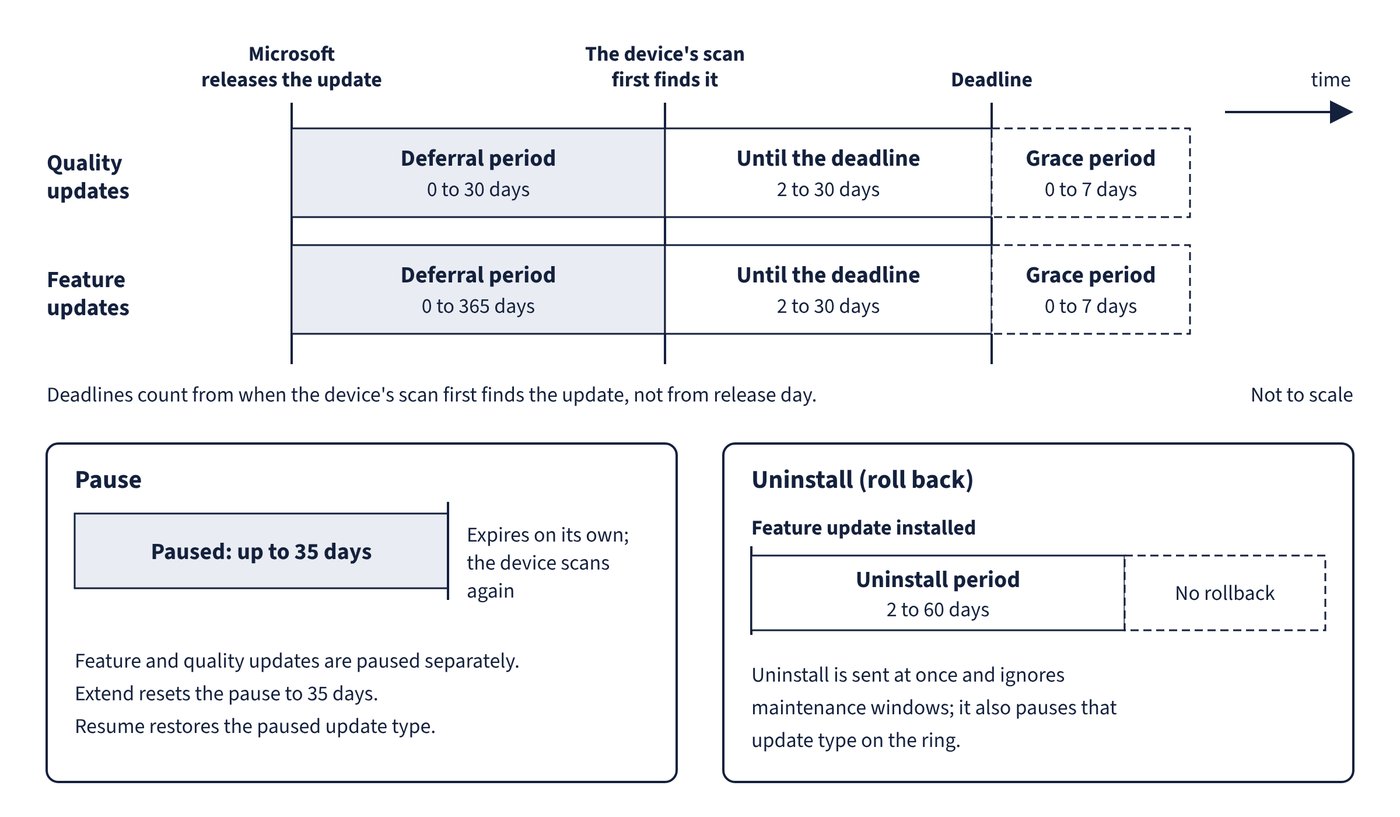
Deadlines are calculated from when the device’s scan first discovered the update, not from release day.
Ring actions
| Action | Behaviour |
|---|---|
| Pause | Stops feature or quality updates (chosen separately) for up to 35 days, then expires automatically and the device scans again; devices receive the pause at their next check-in |
| Resume | Restores the paused update type |
| Extend | Resets the pause to 35 days |
| Uninstall | Rolls back the latest feature or quality update; sent immediately, ignores maintenance windows, can restart without letting users delay, and pauses that update type on the ring |
| Delete | Stops Intune enforcing the ring; settings already on devices stay as they are |
Uninstall has limits: it works only for the device’s servicing channel, feature updates can be rolled back only within the configured uninstall period (2 to 60 days), updates applied by an enablement package can’t be uninstalled, and when the automatic pause ends, devices reinstall the update if it still applies. Figure 12.1 puts the ring’s deferral, deadline, grace, pause and uninstall windows on one timeline.
Common trap: Expecting an update ring Uninstall to wait for the next maintenance window - Intune sends the request immediately, devices start removal as soon as they receive it, and a required restart can’t be delayed by the user.
Common trap: Telling stakeholders that a feature update can always be rolled back within ten days - the rollback window is whatever the ring’s Set feature update uninstall period says, anywhere from 2 to 60 days.
Common trap: Pausing a ring for a two-week freeze and forgetting to resume it - a pause lasts up to 35 days and then expires on its own; Extend resets it to 35 days.