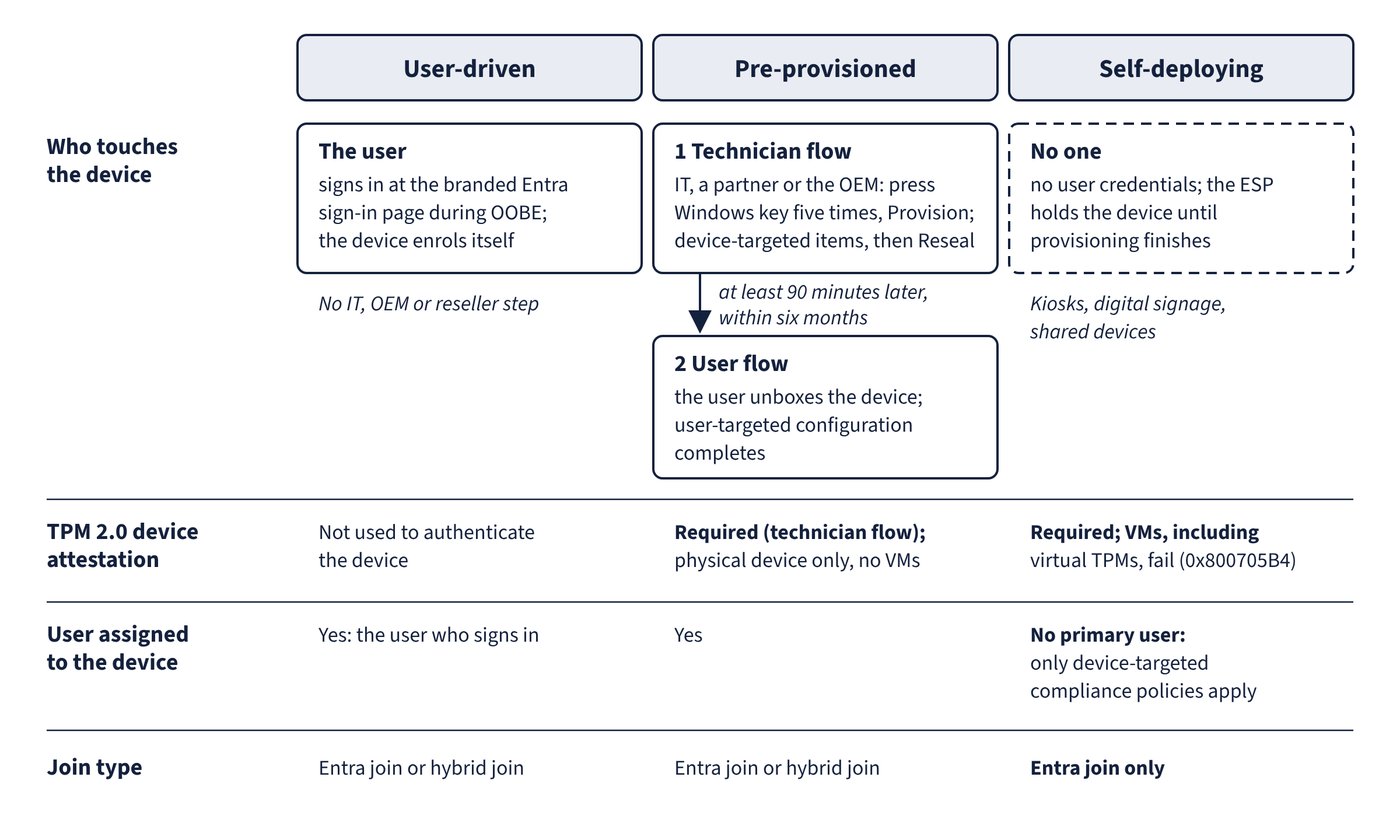
The deployment mode decides who interacts with the device, how the device proves its identity and which join types are possible. Figure 6.1 compares who touches the device in each of the three main modes.
| Capability | User-driven | Pre-provisioned | Self-deploying | Existing devices | Reset |
|---|---|---|---|---|---|
| Microsoft Entra join | Yes | Yes | Yes | Yes | Yes |
| Microsoft Entra hybrid join | Yes | Yes | No | Yes | No |
| User interaction | Yes | Yes (user flow) | No | Not applicable | Local reset |
| IT, OEM or reseller interaction | No | Yes (technician flow) | No | Yes | Remote reset |
| Assigns a user to the device | Yes | Yes | No | Not applicable | Not applicable |
| TPM authenticates the device | No | Technician flow | Yes | Not applicable | Not applicable |
| Must be registered first | Yes | Yes | Yes | No | Yes |
User-driven
User-driven mode associates the device with the user who signs in at the branded Entra sign-in page; together with automatic MDM enrollment this gives the “sign in at OOBE and the device enrols itself” experience. Microsoft Entra company branding supplies the logo and sign-in text shown during OOBE.
Pre-provisioned
Pre-provisioning splits the work. In the technician flow, IT, a partner or the OEM presses the Windows key five times at the first OOBE screen, chooses Windows Autopilot provisioning, checks the profile, organisation, assigned user and QR code, and selects Provision. Device-targeted policies and apps install (plus user-targeted, device-context apps for a preassigned user); on success the technician selects Reseal. The user flow later completes user-targeted configuration.
- Requirements: Windows Pro, Enterprise or Education; Intune; a physical device with TPM 2.0 and device attestation (no VMs); an ESP profile targeted to the device; Allow pre-provisioned deployment = Yes in the profile.
- Wait at least 90 minutes between flows, and run the user flow within six months or Intune Management Extension certificates can expire.
- Compliance in Entra resets during the user flow, so a device compliant after the technician flow can briefly show noncompliant.
- Pre-provisioning for hybrid join doesn’t need domain connectivity during the technician flow; the domain is contacted when the user unboxes the device.
Self-deploying
Self-deploying mode needs no user credentials: the TPM authenticates the device, it joins Microsoft Entra ID, enrols, and the ESP holds it until provisioning finishes. It suits kiosks, digital signage and shared devices.
- Microsoft Entra join only; hybrid join isn’t supported.
- Requires TPM 2.0 with device attestation. On a device without it, or on any virtual machine including Hyper-V virtual TPMs, the deployment fails with a 0x800705B4 timeout.
- No primary user is set, so only device-targeted compliance policies apply, and user-dependent features such as self-service BitLocker key retrieval and user-assigned Company Portal apps don’t work until a primary user is set.
- After a self-deploying or pre-provisioned deployment, the device can’t automatically re-enrol through Autopilot; delete the Intune device record first.
Existing devices
Windows Autopilot for existing devices uses a Configuration Manager task sequence to wipe and reinstall Windows and drop an AutopilotConfigurationFile.json (ASCII or ANSI, one profile per file) so the device runs a user-driven Autopilot deployment on first boot. The JSON supports only user-driven Entra join and user-driven hybrid profiles; self-deploying and pre-provisioning need TPM attestation. If the device is already registered with an assigned profile, that profile wins. It is also a documented route for moving hybrid joined devices to Microsoft Entra join.
Common trap: Testing self-deploying or pre-provisioning on a Hyper-V virtual machine - both need physical TPM 2.0 attestation, and VMs (including virtual TPMs) fail with 0x800705B4.
Common trap: Believing self-deploying mode depends on a firmware-embedded Windows Pro product key - what it depends on is TPM 2.0 with device attestation.
Common trap: Using an Autopilot deployment profile to take over existing domain-joined PCs in place - Convert all targeted devices only registers devices and doesn’t convert hybrid joined devices; existing domain machines are enrolled through hybrid join with automatic enrollment (see “Enrolling Windows, macOS and Apple mobile devices”) or reinstalled with Autopilot for existing devices.