The Enrollment Status Page (ESP) shows provisioning progress and can hold the user at OOBE until required apps and policies are installed. It works with Microsoft Entra join during default OOBE and every classic Autopilot scenario, but not with device preparation and not with devices enrolled through Group Policy.
ESP profiles are created at Devices > Enrollment > Windows > Windows Autopilot > Enrollment Status Page; a tenant can have 51 (the default plus 50).
| Setting | Notes |
|---|---|
| Show app and profile configuration progress | No hides the ESP; Yes unlocks the other settings |
| Show an error when installation takes longer than specified number of minutes | Default 60 |
| Show custom message when time limit or error occur | Otherwise a standard “Setup could not be completed” message |
| Turn on log collection and diagnostics page for end users | Shows a Collect logs button on failure and the Autopilot diagnostics page on Windows 11 |
| Only show page to devices provisioned by OOBE | Yes shows the user phase only to the first user |
| Install Windows quality updates (might restart the device) | Installs the monthly security update at the end of OOBE; Windows 11 only; default Yes on new profiles, No on existing ones; adds 20 to 40 minutes |
| Block device use until all apps and profiles are installed | Yes needed for quality updates and update ring settings to apply in OOBE |
| Allow users to reset device / use device if installation error occurs | Escape options on failure |
| Block device use until these required apps are installed | All or Selected (up to 100 blocking apps) |
| Only fail selected blocking apps in technician phase | Pre-provisioning only; default for pre-provisioned deployments |
Priority and tracking
- Profiles are prioritised (1 is highest). A device-targeted profile wins over a user-targeted one; pre-provisioning and self-deploying use device-targeted profiles only; the default profile applies when nothing else does.
- ESP assignment filters can use only
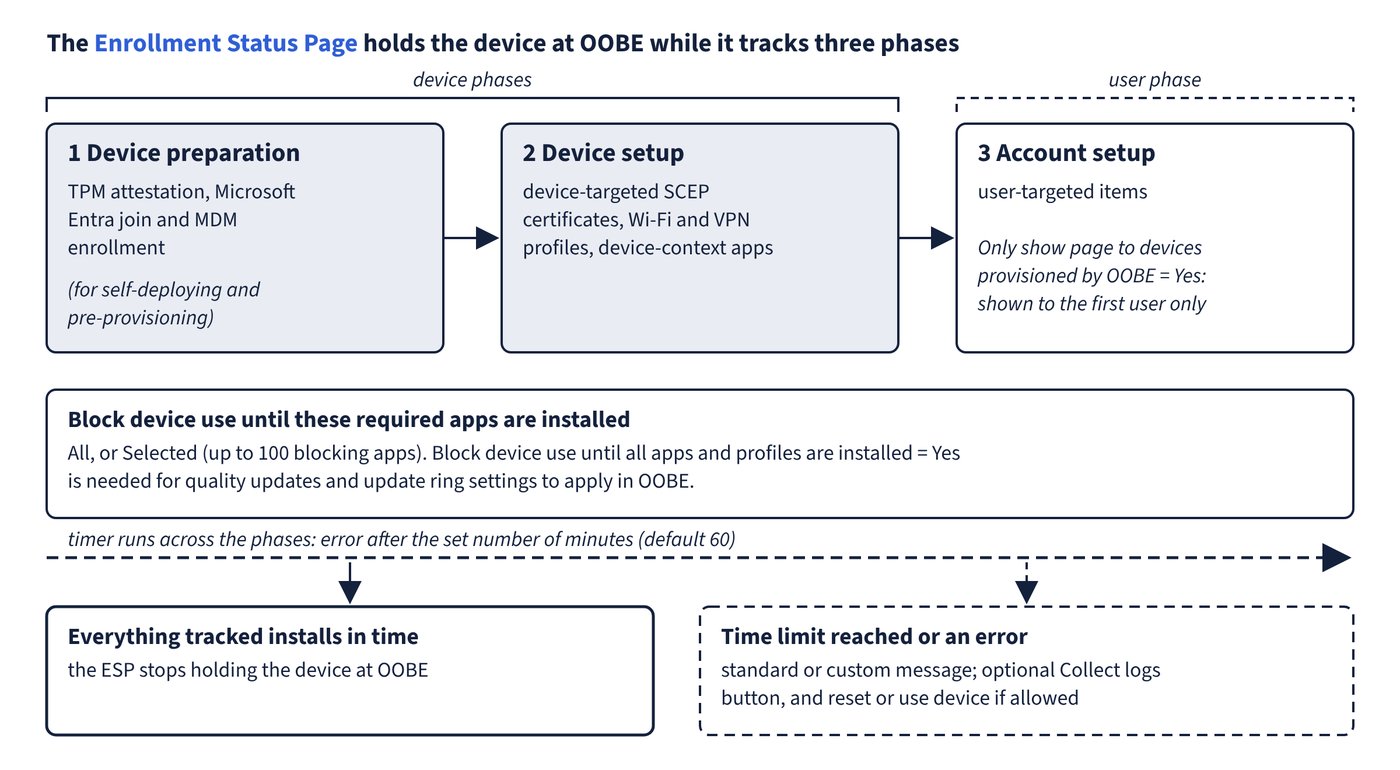
model,manufacturer,osVersion,operatingSystemSKU,deviceOwnershipandenrollmentProfileName. - The ESP runs in three phases: Device preparation (TPM attestation, Entra join and MDM enrollment for self-deploying and pre-provisioning), Device setup (device-targeted SCEP certificates, Wi-Fi and VPN profiles, device-context apps) and Account setup (user-targeted items). It tracks Edge, Assigned Access and Kiosk Browser policies but not other security policies such as device restrictions. Figure 6.2 shows the phases with the blocking-app and timeout settings.
Known pitfalls
- Don’t mix LOB (MSI) and Win32 apps in a classic Autopilot deployment: both use TrustedInstaller and the Win32 install fails with “Another installation is in progress”. Device preparation supports mixing.
- Microsoft recommends deploying Microsoft 365 Apps as a Win32 app rather than the Microsoft 365 Apps app type when the ESP tracks it, to avoid hangs (detail in the chapter “Deploying apps and Microsoft 365 Apps”).
- An ESP that never leaves Identifying can mean the user has no Intune licence. Disabling an ESP profile doesn’t remove ESP policy from devices.
- User-context scripts may not run during ESP; run them in system context.
Common trap: Looking in the Autopilot deployment profile for the option that lets users collect logs when setup fails - it is the ESP setting Turn on log collection and diagnostics page for end users.